
Artificial Intelligence (AI) sometimes gets a bad press, but we’ve found it extremely useful for a variety of tasks at our athletics club. Here’s a brief overview of how we’re using it at Vale of York Athletic Community to help plan our FMC (Funetics Multi Challenge) competition on 27 June at the University of York.
Scheduling an event timetable for an athletics meeting is a complex task, but It’s even more challenging if you’ve never done it before, as we hadn’t.
Thankfully, England Athletics provides a helpful club guide including an example timetable for anyone wanting to put on an FMC meet, which covers suggested event sequencing, group sizes and timings. But our specific challenge was adapting EA’s morning timetable to an afternoon slot, with our own particular athlete numbers, group structures and facilities available.
We fed the EA guidance document and our requirements into Claude, and it produced the Master Event Timetable for our meet you can see below. A handful of revisions later — mainly adjusting buffer times and the long jump duration whilst compensating for some inconsistencies in the original document — we had a print-ready schedule in a total of fifteen minutes.
Master Event Timetable
Funetics Multi Challenge — Event Timetable
| Time | Event | Athletes | Groups |
|---|---|---|---|
| 13:00–13:05 | 50m Sprint | 6 | A |
| 13:05–13:10 | 50m Sprint | 6 | B |
| 13:10–13:15 | 50m Sprint | 6 | C |
| 13:15–13:20 | 50m Sprint | 6 | D |
| 13:20–13:25 | 50m Sprint | 6 | E |
| 13:25–13:30 | 50m Sprint | 6 | F |
| 13:30–13:35 | 50m Sprint | 6 | G |
| 13:35–13:40 | 50m Sprint | 6 | H |
| Time | Event | Athletes | Groups |
|---|---|---|---|
| 13:41–13:46 | 75m Sprint | 6 | N |
| 13:46–13:51 | 75m Sprint | 6 | O |
| 13:51–13:56 | 75m Sprint | 6 | P |
| 13:56–14:01 | 75m Sprint | 6 | Q |
| ⏸ Groups R–U complete field LJ before sprinting | |||
| 14:21–14:26 | 75m Sprint | 6 | R |
| 14:26–14:31 | 75m Sprint | 6 | S |
| 14:31–14:36 | 75m Sprint | 6 | T |
| 14:36–14:41 | 75m Sprint | 6 | U |
| Time | Event | Athletes | Groups |
|---|---|---|---|
| 14:31–14:41 | 600m | 12 | N & O |
| 14:41–14:51 | 600m | 12 | P & Q |
| 14:51–15:01 | 600m | 12 | R & S |
| 15:01–15:11 | 600m | 12 | T & U |
| Time | Event | Athletes | Groups |
|---|---|---|---|
| 15:11–15:21 | 400m | 12 | A & B |
| 15:21–15:31 | 400m | 12 | C & D |
| 15:31–15:41 | 400m | 12 | E & F |
| 15:41–15:51 | 400m | 12 | G & H |
| Time | Event (station) | Athletes | Groups |
|---|---|---|---|
| 13:20–13:56 | Long Jump (Pit 3) | 12 | A & B |
| 13:40–14:10 | Howler 1 | 12 | E & F |
| 13:50–14:20 | Howler 2 | 12 | G & H |
| 13:56–14:32 | Long Jump (Pit 3) | 12 | C & D |
| ↺ Rolling rotation — groups move on completion of each station | |||
| 14:10–14:40 | Howler 1 | 12 | A & B |
| 14:17–14:53 | Long Jump (Pit 1) | 12 | E & F |
| 14:25–15:01 | Long Jump (Pit 2) | 12 | G & H |
| 14:37–15:07 | Howler 2 | 12 | C & D |
| Time | Event (station) | Athletes | Groups |
|---|---|---|---|
| 13:00–13:36 | Long Jump (Pit 1) | 12 | N & O |
| 13:00–13:36 | Long Jump (Pit 2) | 12 | P & Q |
| 13:00–13:30 | Howler 1 | 12 | R & S |
| 13:00–13:30 | Howler 2 | 12 | T & U |
| ↺ Rotate — N,O,P,Q sprint 13:41–14:01 before Howler | |||
| 13:40–14:16 | Long Jump (Pit 1) | 12 | R & S |
| 13:40–14:16 | Long Jump (Pit 2) | 12 | T & U |
| 13:56–14:26 | Howler 1 | 12 | N & O |
| 14:06–14:36 | Howler 2 | 12 | P & Q |
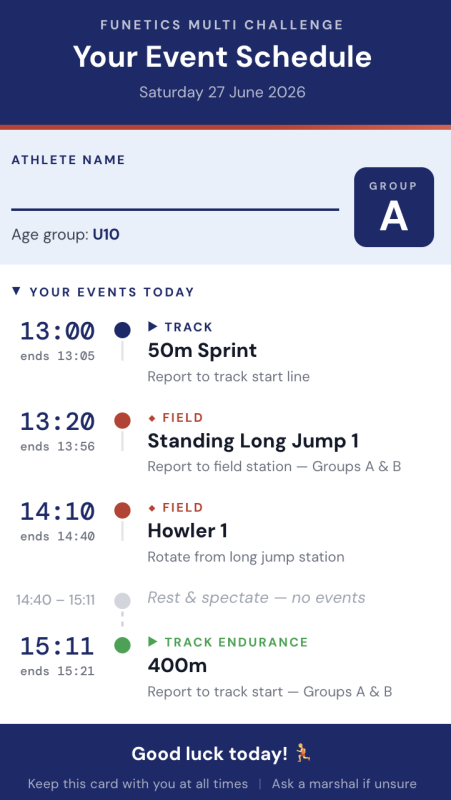
Once we had the Master Event Timetable sorted, our next idea was to create individual Athlete Cards for each athlete as a quick reference showing where they need to be and when. Without AI, this would have been a time-consuming manual task, prone to error and not the best use of volunteer time. With AI, generating a card for every athlete grouping took less than five minutes.
We plan to print these and hand them out at registration as athletes check in on event day. We haven’t decided yet whether to give them to athletes, parents, or both. There’s is also the option of printing the information directly on bibs alongside athlete numbers.
Athlete Cards
Inspired by the Athlete Cards, we decided to see whether Claude could also produce Officials Guidance Cards for each event, drawing on the EA FMC Club Guide. We will have a lot of new officials on the day. The morning of 27 June is a training session for new officials led by Marc Ritchie from England Athletics. So we wanted a quick, event-specific reminder of each role and its responsibilities to hand out to volunteers, possibly attached to a lanyard.
The cards below are a fourth draft, produced by Claude in half an hour after a number of modifications. They need some further changes before they’re ready to use on the day, but they are nearly there. See if you can spot the errors and potential issues we may need to fix.
Officials Guidance Cards
- Place athletes in jumping order. Each athlete starts their run-up from one of three cones — they choose which cone suits their run-up length.
- Each athlete is allowed one practice jump only before the competition begins.
- Athletes take off from within the take-off zone. The take-off judge watches the foot position and marks the exact point of take-off.
- Measurement is taken from the athlete’s foot in the take-off zone to the back of the closest heel on landing.
- Call out the name of the next athlete to jump and the athlete after them.
- Each athlete has 3 competition attempts.
- Children must not enter the jumping area unless called by the official.
- U10s: 60cm zone, positioned 20cm either side of the board
- U12s: 40cm zone, positioned 10cm either side of the board
- 3 long jump pits
- 3 cones per pit to mark run-up start positions
- Tape measure per pit
- Brush and rake per pit
- Recording chart or electronic device
- Each competitor in the group is assigned a different colour marker. Place a marker where each throw lands immediately after it lands.
- Each child throws 3 times. Only the furthest marker of each colour needs to be measured — do this at the end once all athletes have completed all their attempts.
- This means no measuring between individual throws, which keeps the event moving quickly.
- Children throw a howler as far as possible from a standing position.
- Children must stand with one foot in front of the other. If throwing with the right hand, the left foot should be forward (and vice versa for left-handed children).
- Children must not enter the throwing area unless requested by the official.
- Measure each athlete’s best throw to the nearest completed centimetre once all attempts are complete.
- Children not throwing must be positioned behind the safety line.
Any athlete who steps over the throwing line still has the throw measured. Instead of a No Throw:
- U12s over the line: deduct 3m from the measured distance
- U10s over the line: deduct 1m from the measured distance
- All legal throws: no deduction applied
- 9–12 howlers per station
- Coloured markers — one distinct colour per athlete in each group
- Measuring tape
- Recording chart or electronic device
- Safe area to throw into
- Start and finish lines are already marked on the track — no cone setup required.
- Athletes are seeded randomly into heats of 6.
- Assign each athlete a lane. Make sure all athletes start behind the line.
- The starter uses Sprint Timer on the MacBook to play the start sound, which simultaneously begins timing.
- Finish line officials use the Sprint Timer app on iPad or iPhone to record each athlete’s finish time.
- Times are entered directly into Roster after each heat.
If an athlete jumps ahead clearly by eye, the starter recalls all athletes for a false start. There are no penalties for false starting.
- Starter (MacBook): Sprint Timer software — plays start sound and triggers timing
- Finish line (iPad / iPhone): Sprint Timer app — records finish times for each athlete
- Results: Input finish times directly into Roster after each heat
- Start and finish lines are already marked on the track — no cone setup required.
- U10s run 400m; U12s run 600m. Heats are groups of 12 athletes (two competition groups together).
- Assign each athlete a lane to start in. Make sure all athletes start behind the line.
- The starter uses Sprint Timer on the MacBook to play the start sound, which simultaneously begins timing.
- Finish line officials use the Sprint Timer app on iPad or iPhone to record each athlete’s finish time.
- Times are entered directly into Roster after each heat.
If an athlete jumps ahead clearly by eye, the starter recalls all athletes for a false start. There are no penalties for false starting.
- Starter (MacBook): Sprint Timer software — plays start sound and triggers timing
- Finish line (iPad / iPhone): Sprint Timer app — records finish times for each athlete
- Results: Input finish times directly into Roster after each heat
AI isn’t perfect, but if you’re willing to work with it and review the output carefully, it’s a tremendous asset to any athletics club. Claude is like having an army of robot volunteers that frees up your human volunteers to focus on what they do best at en event: supporting nervous children and parents on the day, and bringing the kind of warmth, kindness and fairness to a competition that no algorithm can replace.
If you’re organising a similar event, the process is straightforward: gather your constraints (start time, athlete numbers, age groups, available facilities), give Claude the EA guide or any other timetable as context, and describe what’s different about your setup. It handles the timetabling surprisingly well but just needs a careful check afterwards to make sure the results are error free and meet your specific requirements. You can even ask Claude to do the checking for you.
We are using the Claude Pro plan at approximately £18 a month, but there is a free tier if you want to give it a go before you buy.
